Development / Cloud Computing
Setting Up a Sitecore MCP Server with XP and VS Code Copilot (Step-by-Step Guide)
SSaurav Kumar6 Min Read
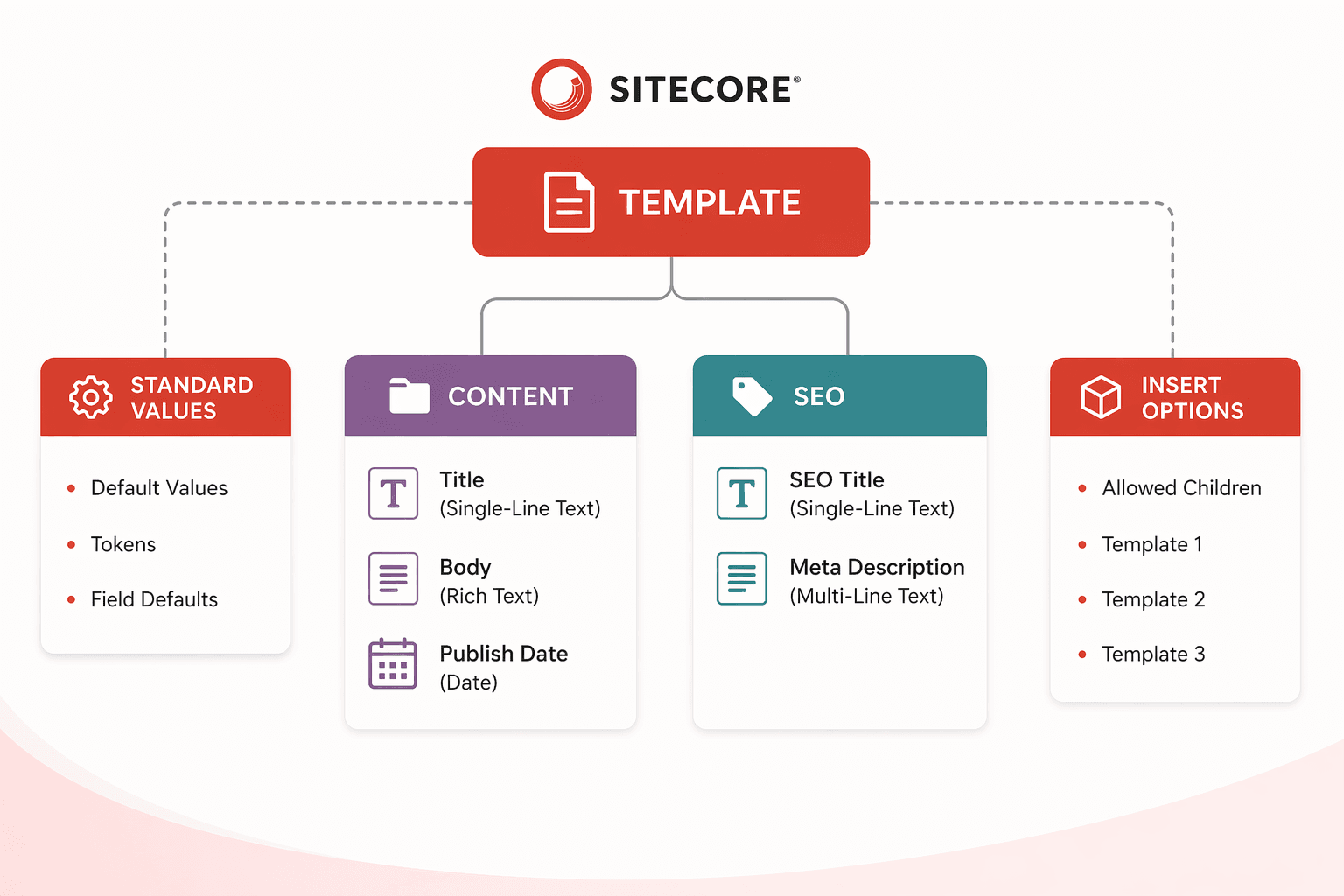
MCP (Model Context Protocol) is a way for AI tools—like GitHub Copilot—to securely connect to external systems (like CMSs, APIs, databases) and use real, live data while generating responses.
MCP is a bridge between AI and your systems.
Instead of the AI guessing or relying only on training data, MCP lets it:
The Sitecore Marketer MCP Server is changing the game for how developers and marketers interact with content, moving us closer to the era of the “Prompt-Driven CMS.”
It allows you to use natural language in AI tools (like Claude, Cursor, Copilot) to manage Sitecore XM Cloud content, such as creating pages, updating components, or managing assets. It acts as a translator between AI agents and the Sitecore Agent API to perform actions securely.
Here is a breakdown of why this matters, who it benefits, and real-world use cases.
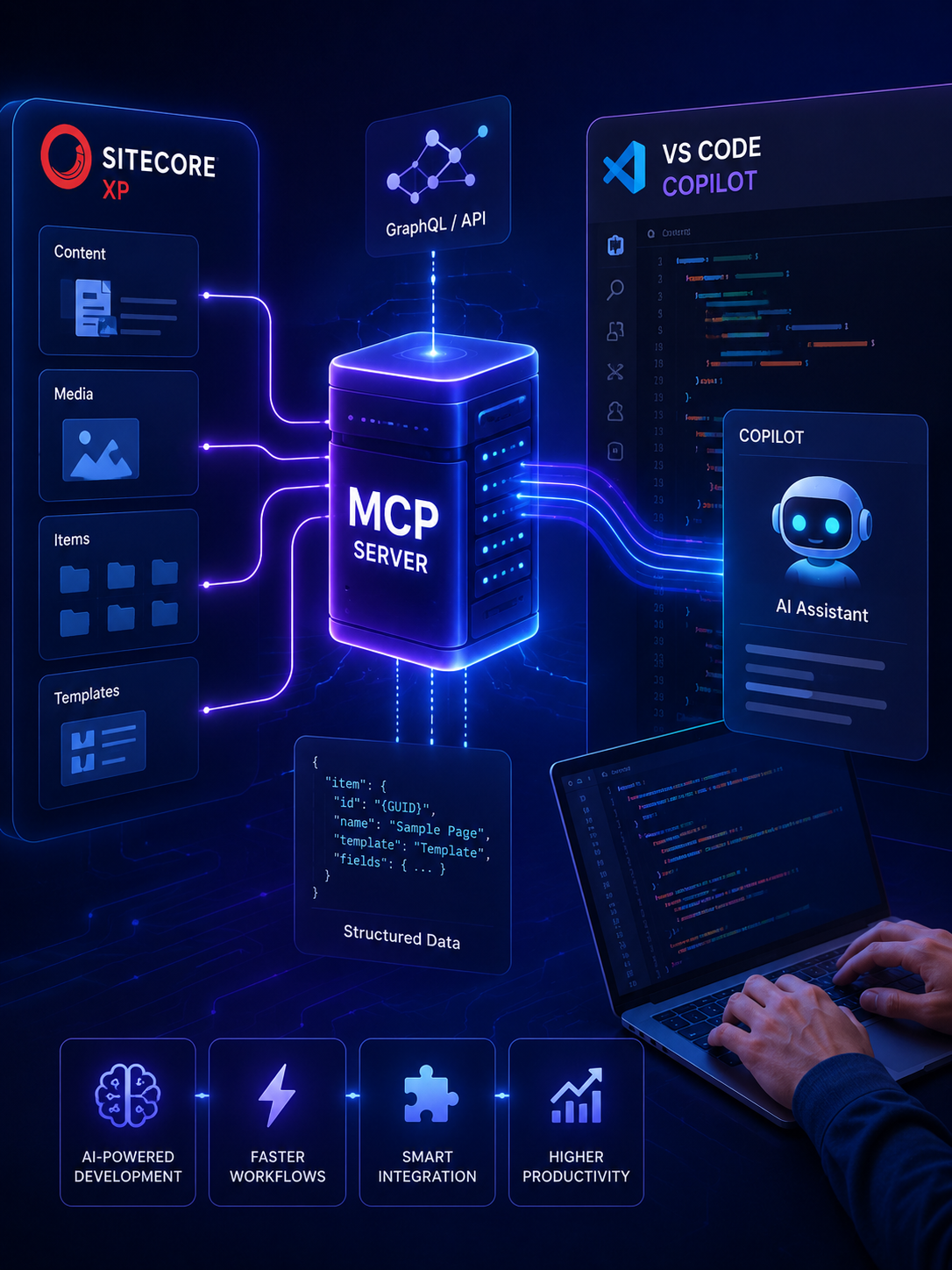
Connect Sitecore XP with MCP and Copilot to accelerate development, access structured content, and build smarter AI-assisted workflows.
Integrating AI into your Sitecore workflow is no longer experimental—it’s quickly becoming a practical advantage. By setting up a Model Context Protocol (MCP) server, you can enable GitHub Copilot inside Visual Studio Code to directly interact with your Sitecore Experience Platform environment.
This guide walks you through a streamlined, real-world setup based on a working approach, so you can get Copilot querying Sitecore content in minutes.
The objective is simple:
Allow Copilot Chat to query and understand Sitecore content using an MCP server.
Instead of manually hitting APIs or digging through Sitecore, you can ask:
And get structured responses instantly.
Before you begin, make sure your environment is ready:
Install:
Inside your project root, create the following file:
.vscode/mcp.json
This file tells VS Code how to spin up and connect to your MCP server.
Add a server configuration inside mcp.json.
Example:
{
  "servers": {
    "sitecore-local": {
      "command": "npx",
      "args": [
        "sitecore-mcp-server",
        "--endpoint",
        "https://your-sitecore-instance/sitecore/api/graph/edge",
        "--apiKey",
        "YOUR_API_KEY"
      ]
    }
  }
}
What to update:
{
  "servers": {
    "Sitecore Local": {
      "type": "stdio",
      "command": "npx",
      "args": ["@antonytm/mcp-sitecore-server@latest"],
      "env": {
        "TRANSPORT": "stdio",
        "GRAPHQL_ENDPOINT": "https://sc104sc.dev.local/sitecore/api/graph/edge",
        "GRAPHQL_SCHEMAS": "edge,master,core",
        "GRAPHQL_API_KEY": "YOUR_API_KEY",
        "ITEM_SERVICE_SERVER_URL": "https://sc104sc.dev.local",
        "ITEM_SERVICE_DOMAIN": "sitecore",
        "ITEM_SERVICE_USERNAME": "",
        "ITEM_SERVICE_PASSWORD": ""
      }
    }
  }
}If you don’t see this then try restarting VSCode and try opening CoPilot and clicking the tool icon again or try restarting the MCP server in your console.
1. Ask CoPilot to test the connection by typing something like: ‘provide the list of all pages of site– Your-Site-Name ‘ and Click continue to run the command and test it.
If it worked You should see something like this:
Once configured:
Now connect Copilot:
At this point, Copilot is connected to your Sitecore environment.
Try a simple query inside Copilot Chat:
Get item by path /sitecore/content/Home
If everything is configured correctly, Copilot will:
1. SSL Errors (Self-Signed Certificates)
If you’re running Sitecore locally with HTTPS:
NODE_TLS_REJECT_UNAUTHORIZED=0
This disables SSL verification (use only for local development).
2. MCP Server Not Found
3. API Not Responding
This setup unlocks a new development workflow:
Without MCP
With MCP + Copilot
Copilot is no longer guessing—it’s working with your actual Sitecore data.
Once your MCP server is working, you can extend it further:
Setting up a Sitecore MCP server is a small investment with a big payoff. It bridges the gap between traditional CMS development and modern AI-assisted workflows.
By connecting Sitecore XP, VS Code, and GitHub Copilot, you create a development environment where content, code, and AI work together seamlessly.
And this is just the beginning—once MCP becomes part of your workflow, you’ll start thinking about Sitecore not just as a CMS, but as a programmable knowledge system.
Happy Coding !
A Sitecore MCP Server is a Model Context Protocol integration layer that allows AI tools such as VS Code Copilot to interact with Sitecore data and APIs through structured tools and requests.
You can connect Sitecore XP to VS Code Copilot by configuring an MCP server in VS Code, connecting it to Sitecore APIs such as GraphQL, starting the MCP server, enabling Copilot Agent Mode, and testing a Sitecore content request.
MCP, or Model Context Protocol, provides a standardized way for AI applications to interact with external tools and services. In Sitecore development, an MCP server can expose structured Sitecore data and operations to AI coding agents.
Create or configure an MCP configuration file such as .vscode/mcp.json, define the Sitecore MCP server and its required command or connection details, then start the server through VS Code's MCP tools or Command Palette.
The .vscode/mcp.json file stores workspace-level MCP server configuration in VS Code. It tells VS Code which MCP servers to run or connect to and how those servers should be configured.
Yes. VS Code supports MCP servers as agent tools, allowing Copilot agents to use tools exposed by configured MCP servers. A Sitecore MCP server can therefore provide Sitecore-specific context and operations to the Copilot workflow.
GraphQL can provide structured Sitecore queries that are useful when building an MCP integration. A middleware layer can normalize the returned data into predictable structures that are easier for AI tools to consume.
Depending on the tools exposed by the MCP server, Copilot can query Sitecore content, retrieve item information, inspect templates and fields, and use structured Sitecore context when generating or modifying code.
Check the MCP configuration file location and syntax, verify that the server command and endpoint are valid, confirm required credentials and API access, restart VS Code, and use VS Code's MCP server and output tools to inspect startup or connection errors.
A Sitecore environment should not be exposed unnecessarily. Use authentication, API keys or appropriate credentials, restrict available tools and endpoints, apply access controls and rate limits, avoid hard-coded secrets, and keep local MCP servers limited to trusted sources.