Step-by-Step Guide to Installing Sitecore 10.4.1 Locally
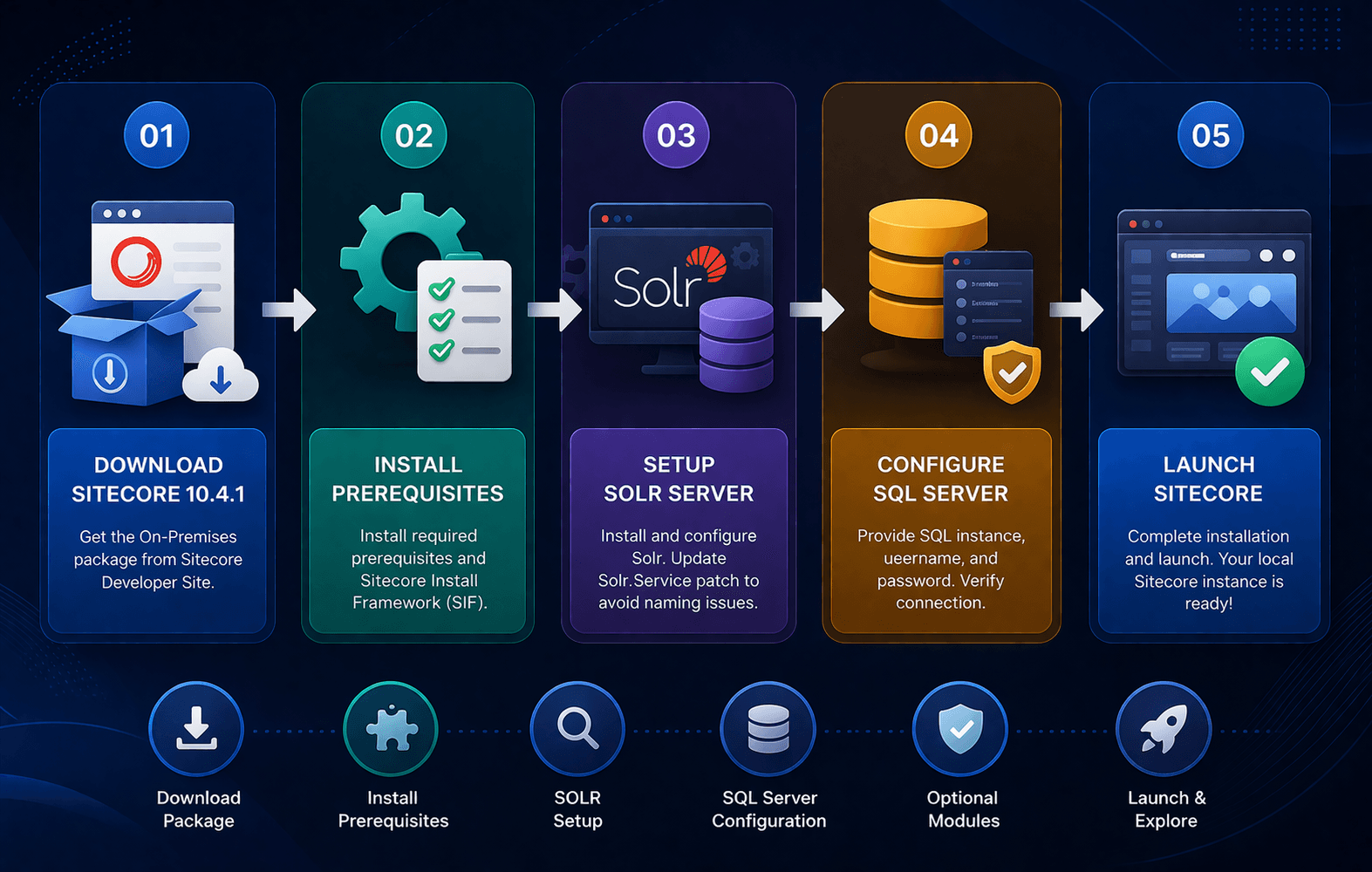
- Download correct package of sitecore 10.4.1 exe file from the sitecore developer site, and download from On Premises deployments. Download highlighted package for sitecore exe setup.
- Download correct package of sitecore 10.4.1 exe file from the sitecore developer site, and download from On Premises deployments. Download highlighted package for sitecore exe setup.
- Once you download package extract that file and click on the sitecore exe file to start your installation process.

Move Beyond Sitecore Setup
Turn your local Sitecore installation into a powerful, high-performance digital experience with expert guidance and development support.
- Note: Before you click on the setup.exe file, there is a minor change you need to undertake during the installation process of SOLR. In Sitecore 10.4.1 when you start installing SOLR, the solr file gets installed with multiple names in a single file, the prefix which you have provided and the file both come together as one file name. i.e. solr-9.8.1solr-9.8.1 to avoid such naming in the solr file we need to update "Solr.Service" patch as "Solr.Service": "[concat(variable('Sol.FileName'))]”, in Solr-SingleDeveloper.json file and saved it to avoid such cases.
- Now you can click on the setup.exe file.
- Download pre-requisites for sitecore.
but I encountered the following issue:
I saw that a lot of people have the same issue. To fix this you should install a new SIF through Powershell and use the next command:
Install-Module SitecoreInstallFramework -SkipPublisherCheck -Force
After installing a new SIF, need to re-run Sitecore installation. The issue should be going.
Move Beyond Setup—Build a High-Performance Sitecore Experience
- Install Solr Server. This step should be done without any issues.
- Fillup the required details and attached sitecore certificate for next step.
- Fillup the SQL Server details with instance name, username and password.
- Check all the details for solr setting which we previously installed
- For optional module, if you are work on SAX part then you can check on the checkbox otherwise, we can skip this part and move ahead with installation part.
- Once the installation process is complete you will see the below screen, and then click on the launch button, you will see another screen on the browser side.
Your localhost screen will look like this as a plain vanilla instance.
you will encounter a new dashboard, styled reminiscent of XMCloud. Your CMS is look like this.
For help reviewing installation failures or planning ongoing maintenance, explore our Sitecore support services and discuss the scope of support your environment needs.
Thank You!
Frequently Asked Questions
How do I install Sitecore 10.4.1 locally?
To install Sitecore 10.4.1 locally, download the correct on-premises package, install the required prerequisites, configure Solr 9.8.1, enter your SQL Server details, update or install Sitecore Installation Framework if required, complete the Sitecore installation wizard, and launch the local CMS.
What are the prerequisites for installing Sitecore 10.4.1?
A typical Sitecore 10.4.1 local installation requires Windows, IIS and required web components, Microsoft SQL Server, Apache Solr, PowerShell, Sitecore Installation Framework, valid certificates, and the appropriate Sitecore installation package.
Which Solr version should I use with Sitecore 10.4.1?
Sitecore XP 10.4.1 supports and requires Solr 9.8.1 for the updated installation flow. Using the correct Solr version is important for successful indexing and local environment configuration.
How do I fix the Solr installation issue in Sitecore 10.4.1?
If the Solr installation process creates an incorrect or duplicated folder name, review the Solr-SingleDeveloper.json configuration and correct the Solr.Service naming value before running the Sitecore installation again.
How do I fix Sitecore Installation Framework errors during installation?
A common solution is to update or reinstall Sitecore Installation Framework using PowerShell. For example, the command Install-Module SitecoreInstallFramework -SkipPublisherCheck -Force can install the latest available SIF module, after which the Sitecore installation can be rerun.
How do I configure SQL Server for Sitecore 10.4.1?
During installation, provide the correct SQL Server instance name, administrative username, and password. Ensure SQL Server is running and the selected account has the permissions required to create and configure the Sitecore databases.
Do I need an SSL certificate for a local Sitecore 10.4.1 installation?
Yes, local Sitecore environments commonly require HTTPS and certificate configuration. The installation process can require you to select and attach the appropriate certificate before the local Sitecore instance is configured.
What is Sitecore Installation Framework or SIF?
Sitecore Installation Framework, commonly called SIF, is a PowerShell-based framework used to deploy and configure Sitecore environments. It supports automated installation and configuration using Sitecore installation packages and configuration files.
Why is Sitecore 10.4.1 not starting after installation?
If Sitecore does not start after installation, check whether the installation completed successfully, verify SQL Server and Solr connectivity, confirm certificate bindings, review IIS configuration, and check that the local Sitecore instance URL and services are running correctly.
Can I use Sitecore 10.4.1 for local development?
Yes. Sitecore 10.4.1 can be installed locally for development and testing. A properly configured local environment allows developers to work with Sitecore, SQL Server, Solr, IIS, SIF, and optional modules before deploying to higher environments.